School Timetable Software with Auto-Generate and Clash Checks
Build each class's week on a grid that already knows your periods and breaks, let Campus 24x7 fill it from your subject assignments, and stop a teacher or a room being booked twice — then parents and students see the result in the app.
3Clash checksTeacher, room and class, on every save
1 clickAuto-generateFilled from your subject assignments
Per dayTeacher workloadPeriods a week and a day-wise breakdown
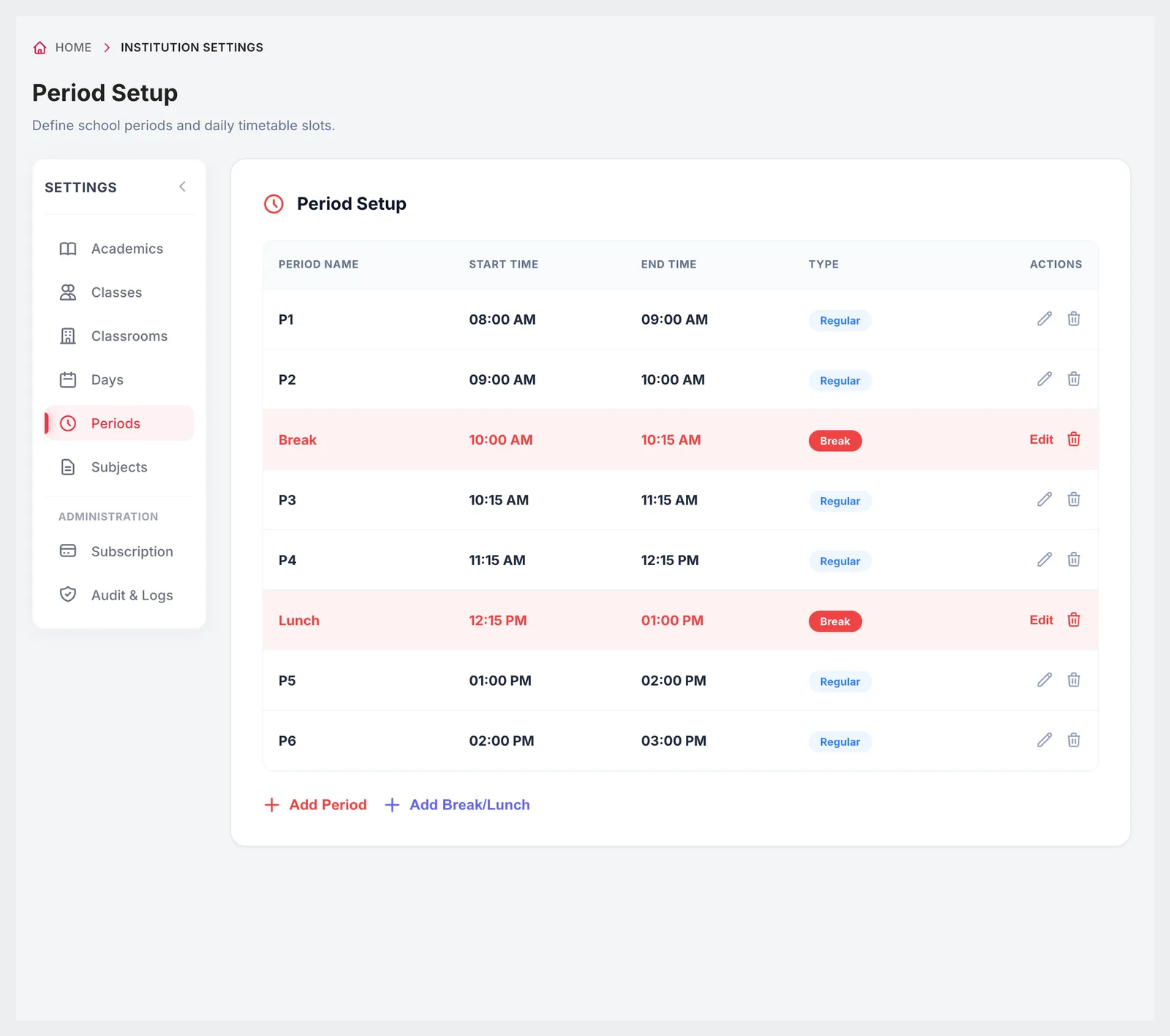
GlobalPeriods and breaksDefined once, used by every class grid
How it works
From setup to everyday use
1
Define the school day
Set working days, periods and breaks once in Institution Settings.
2
Assign subjects
Record which teacher teaches which subject to which class and section.
3
Build or auto-generate
Fill the grid by hand, or let Campus 24x7 place lessons from the subject assignments.
4
Check and share
Clear any conflicts, review teacher workload, and parents and students see the timetable in the app.
What it does
Inside Timetable
Real screens from the Campus 24x7 admin app. Names and contact details are sample data.
01Timetable grid
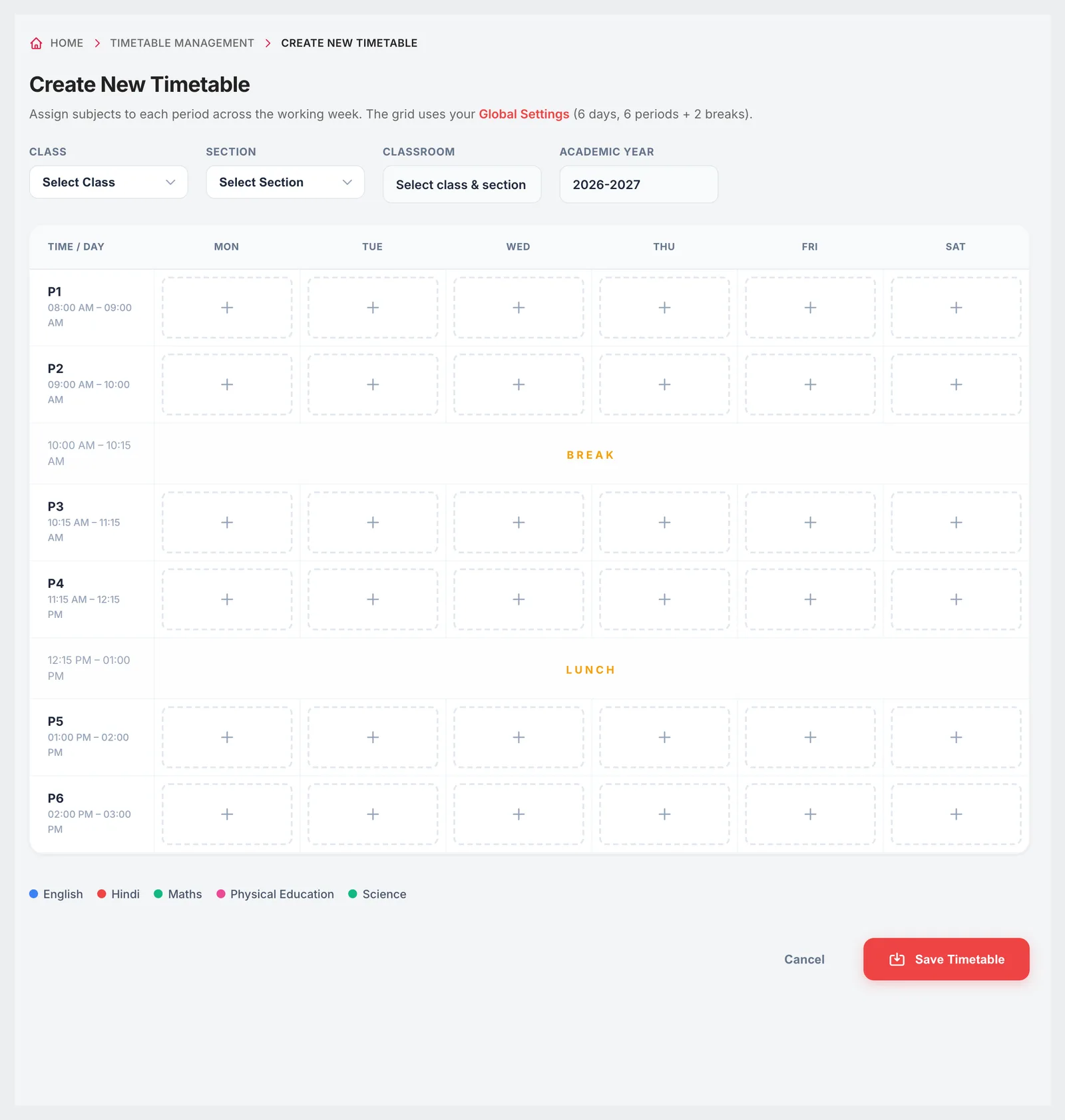
A weekly grid built on your real school day
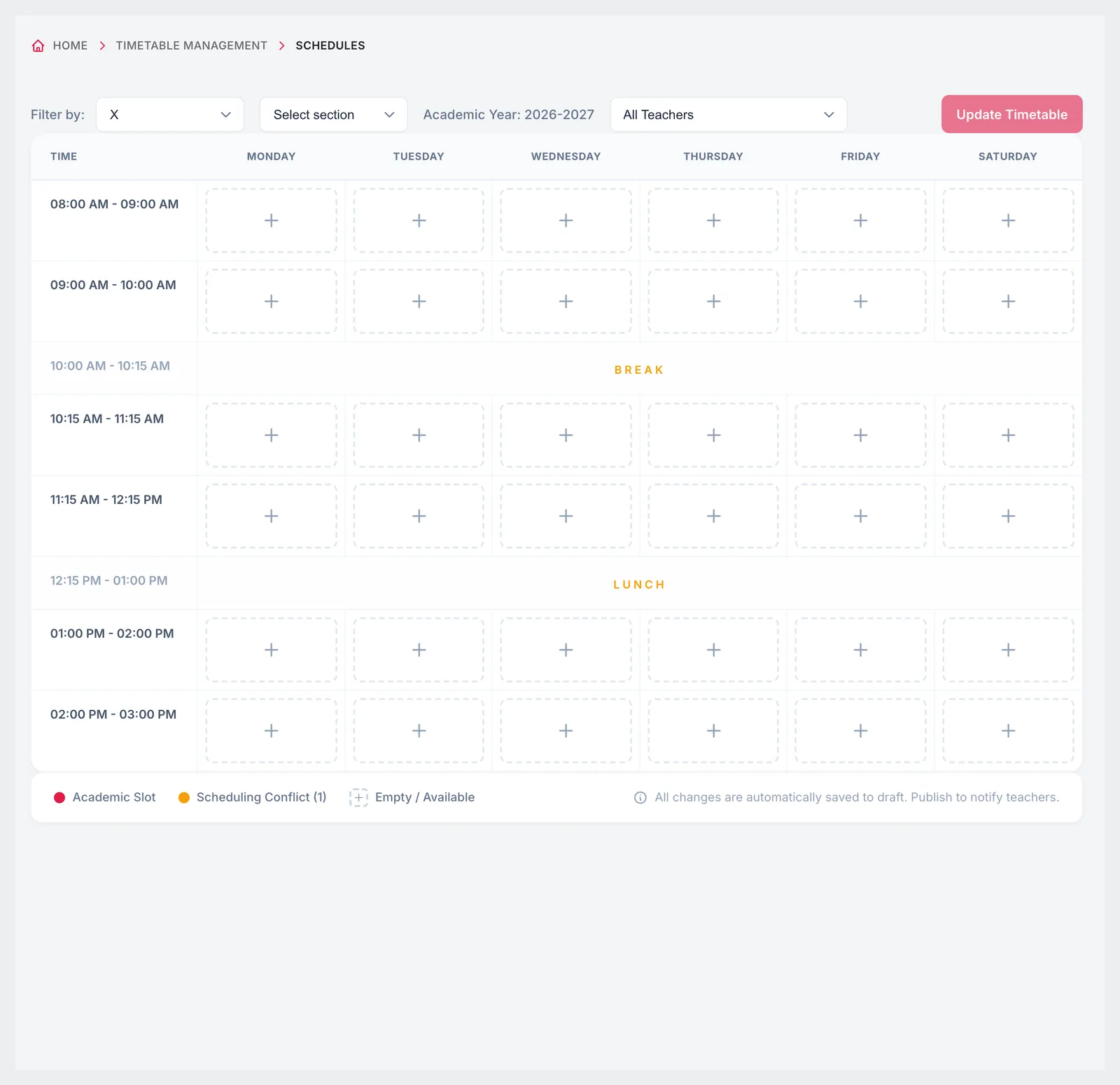
Pick a class, section, classroom and academic year and the grid appears with your working days across the top and your periods, breaks and lunch down the side, exactly as set in Institution Settings. Assign a subject and teacher to each slot from the class's subjects.
Rows come from your period setup, including breaks and lunch
Columns come from your working days
Subject and teacher per slot
Classroom and academic year chosen with the class
02Auto-generate
Start from a filled timetable, not a blank one
Auto-generate places lessons for a class from its subject assignments while avoiding teacher clashes. You can choose whether it overwrites slots already filled, and every run is recorded in the audit log, including how many existing slots it replaced.
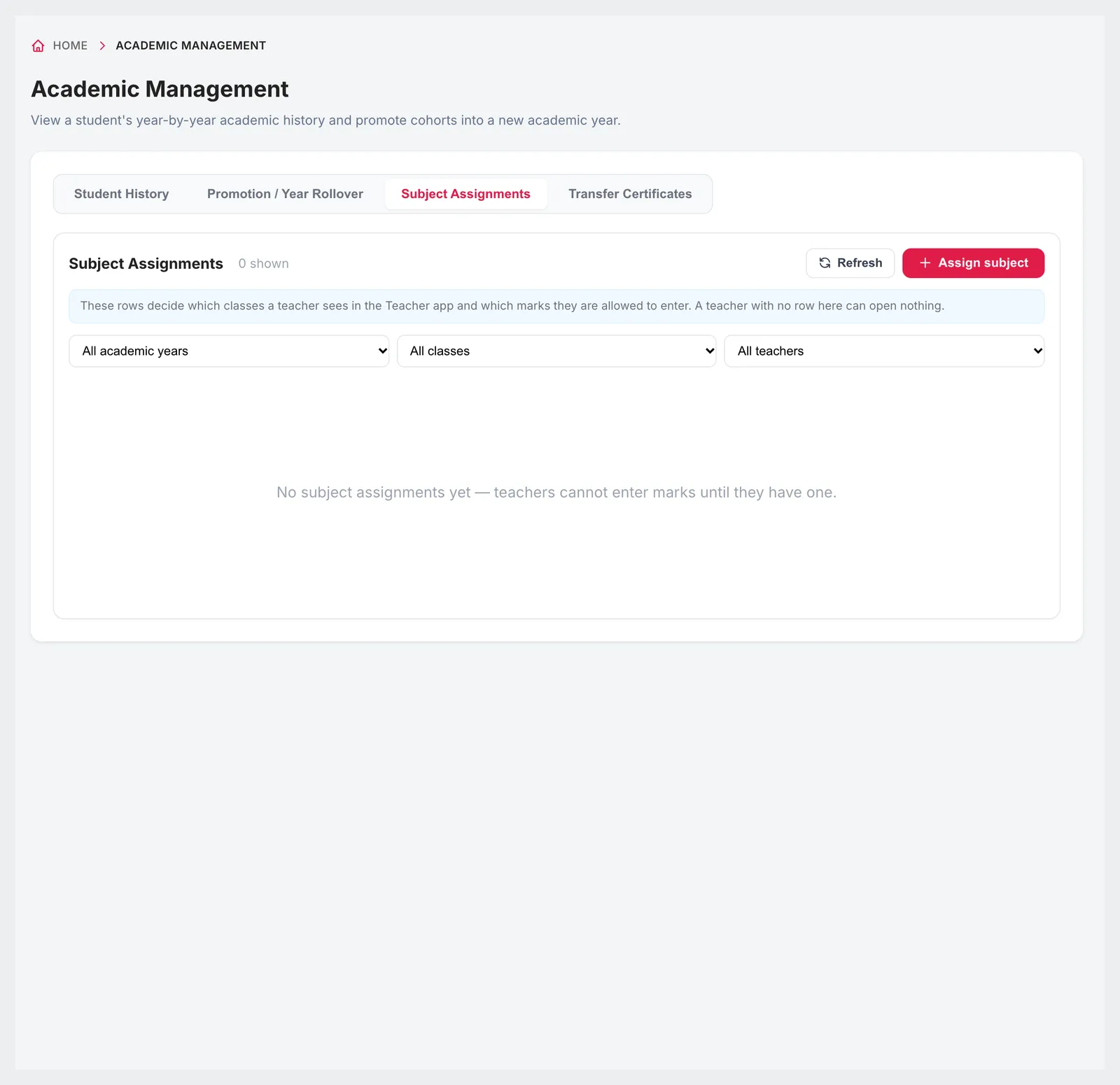
Uses the teacher-subject-class assignments you already keep
Avoids double-booking a teacher
Optional overwrite of existing slots
Each run recorded in the audit log
03Clash checks
A teacher can't be in two rooms at once
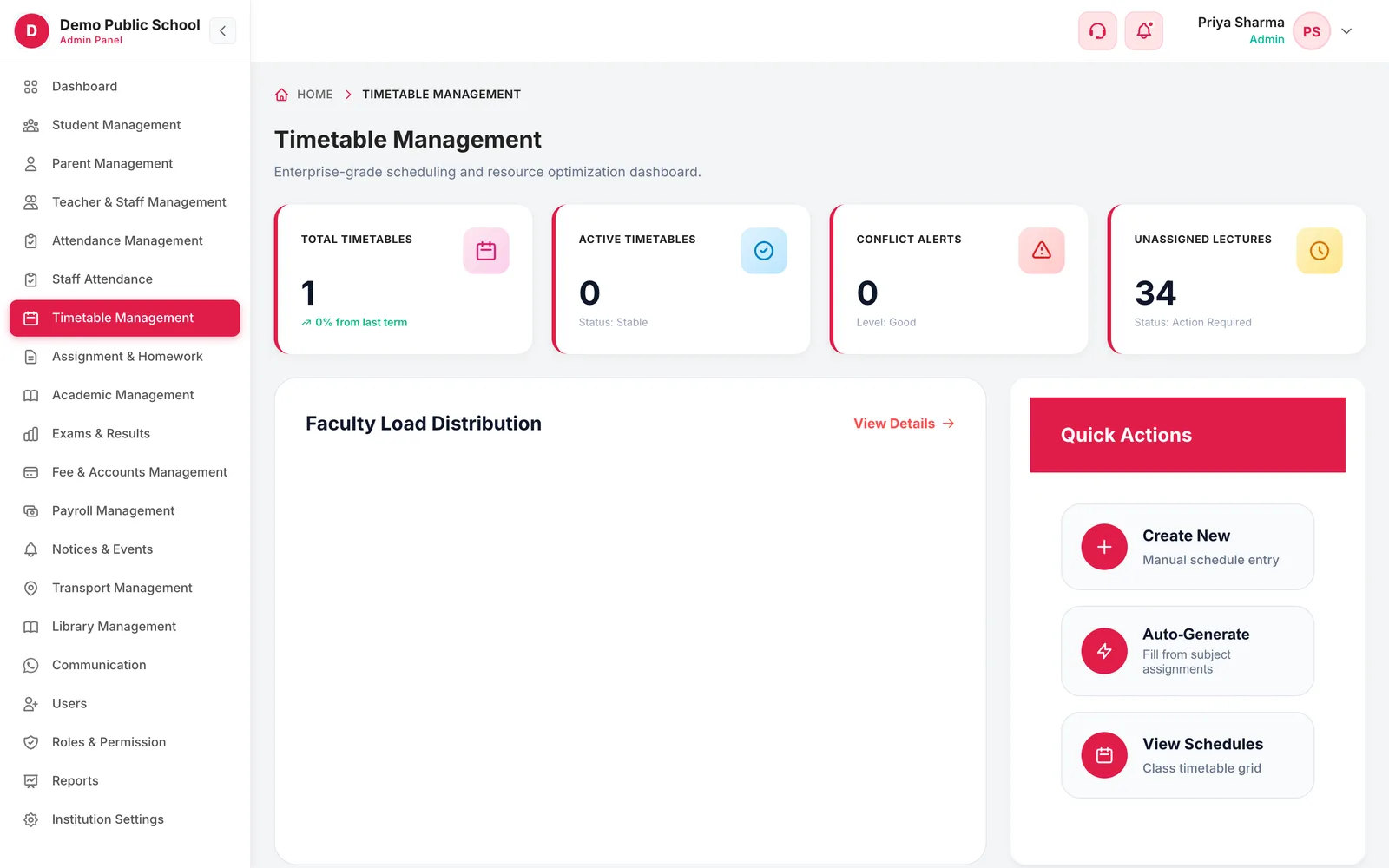
Every time a timetable is saved, Campus 24x7 checks it against the rest of the school. A slot that would double-book a teacher, put two classes in one room or give a class two lessons at once is refused. The timetable dashboard counts conflict alerts and unassigned lectures, lists today's conflicts and shows room utilization, and the schedules view highlights any clash so you can fix it.
Teacher double-booking blocked
Room clashes blocked
Class collisions blocked
Schedules view by class or by teacher, with conflicts highlighted
Dashboard counts of conflicts, unassigned lectures and room utilization
04Periods and workload
Periods set once, workload visible to everyone
Periods and breaks are defined once for the whole school, with start and end times, so every class grid uses the same bell schedule. The faculty workload page then shows each teacher's periods per week, the average load, the busiest teacher and a day-wise breakdown of classes, sections and rooms.
Regular periods and breaks with start and end times
Add a period or a break or lunch at any point in the day
Periods per week for every teacher
Day-wise load by class, section and room
9:41
Responsive
The timetable families actually look at
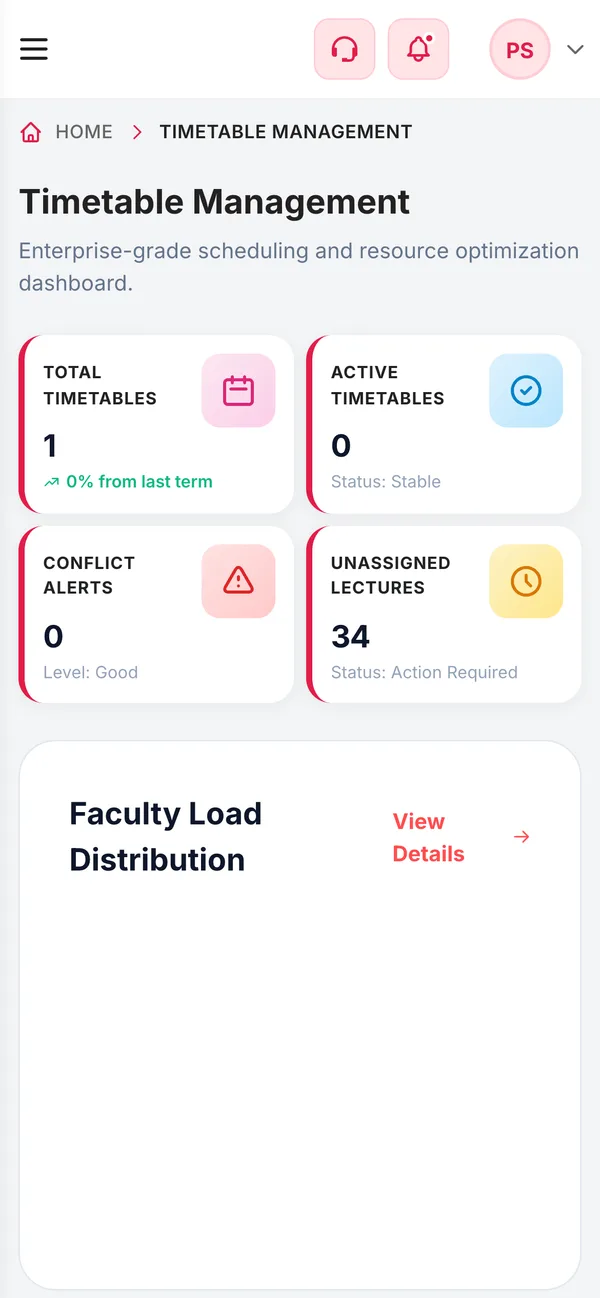
Once a class has a timetable, parents and students see it in the Campus 24x7 app, and staff can check any class or teacher's week from a phone browser — useful when you are arranging a substitute in the corridor.
Timetable screen in the parent and student app
Class or teacher schedule on a phone browser
Same grid, no separate copy to update
Connected
Works with the rest of Campus 24x7
The timetable is built from your school setup and subject assignments.
Auto-generate only works for classes that have subject assignments; a class with none has nothing to place.
There is no separate substitution or teacher-leave module; to cover an absent teacher, edit the slot.
FAQ
Questions schools ask
Can Campus 24x7 generate the timetable automatically?
Yes. Auto-generate fills a class's grid from its subject assignments while avoiding teacher clashes, and you choose whether it overwrites slots that are already filled.
Does it stop a teacher being double-booked?
Yes. Saving a timetable that puts a teacher in two classes at the same time, two classes in one room, or two lessons in one class slot is refused.
Can we have breaks and lunch in the timetable?
Yes. Breaks and lunch are defined with the periods in Institution Settings and appear on every class grid.
Can we see a teacher's weekly load?
Yes. The faculty workload page shows periods per week for each teacher, the average and the busiest, with a day-wise breakdown.
Can parents and students see the timetable?
Yes. The Campus 24x7 app has a timetable screen for parents and for students.
Does it handle substitutions?
There is no dedicated substitution workflow. Edit the slot for the day, and the clash checks still apply.
Watch a timetable fill itself
Share one class's subjects and teachers and we'll auto-generate its week in the demo. The first two months cost ₹0.